Currently in startup preparation

Setup so simple, you don't need a demo

Self-service setup in about 1 week. No technical skills required. No sales calls needed.

Every field includes inline help—just follow the guided UI and you're ready to go.

5 simple steps to get started

Complete your initial configuration in a single day. Each step includes CSV bulk import for faster setup.

1

Department Registration

Register your organizational departments. Use CSV bulk import or create departments one by one.
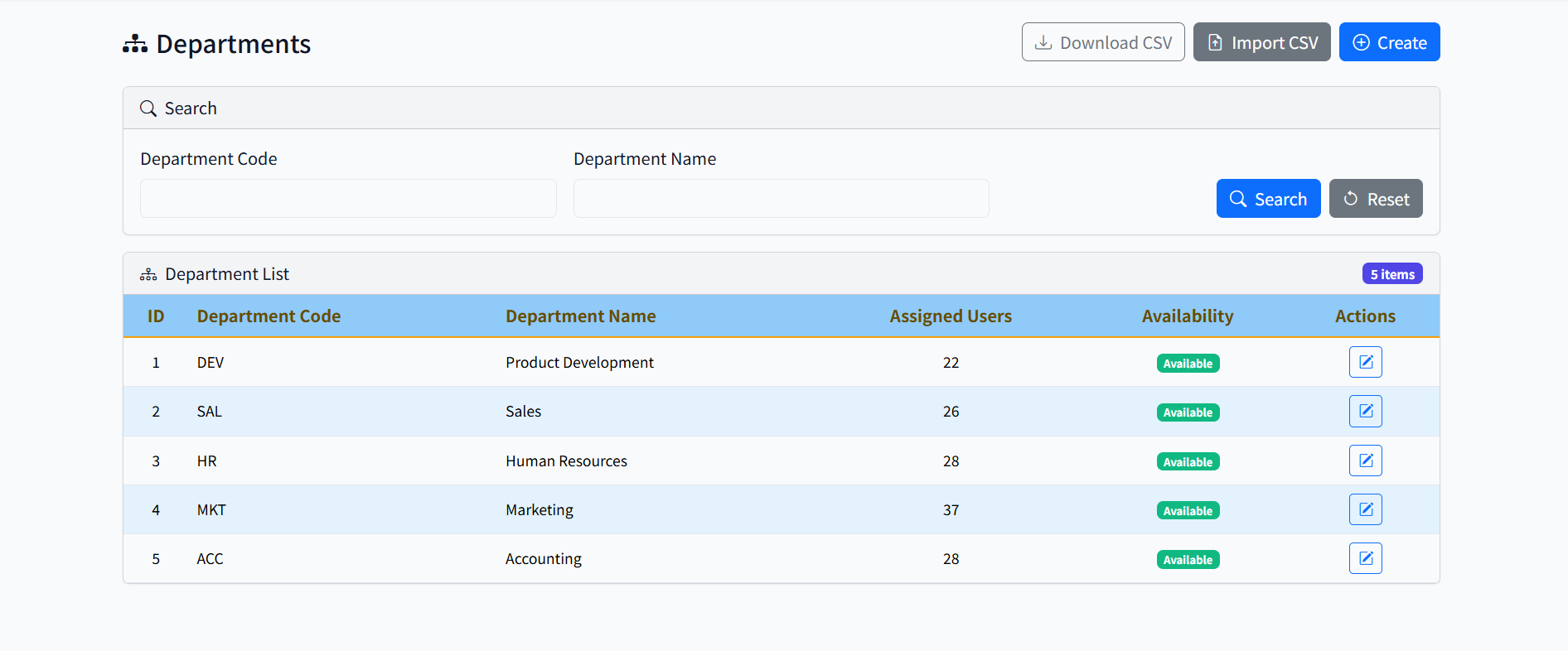
Department List - CSV import and manual creation options

Download CSV, Import CSV, or Create manually
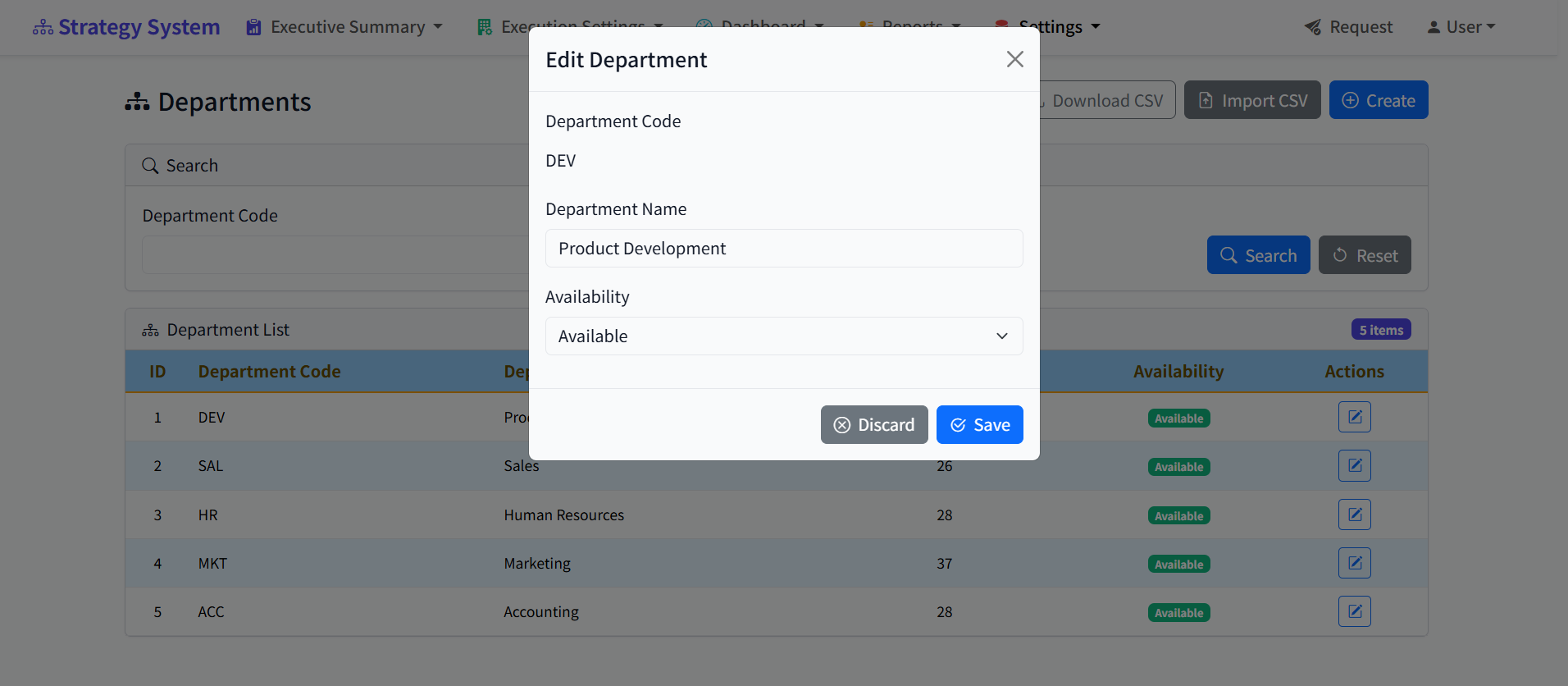
Department Edit - Simple form with inline help

Edit department details with simple form

Pro tip: Download the CSV template first to see the required format. Edit in Excel and bulk import all departments at once.

2

Role Configuration

Configure system roles and permissions. Default roles are provided—customize as needed.
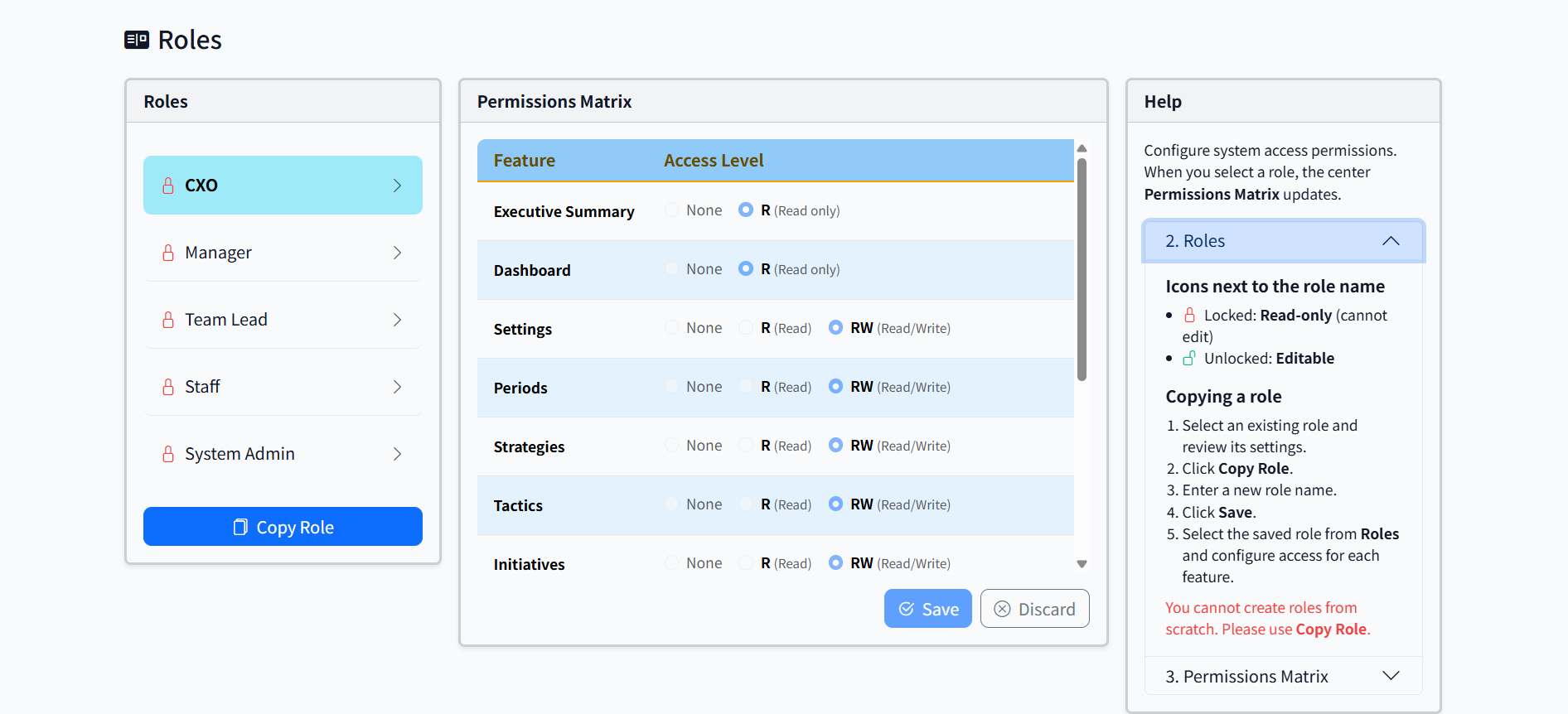
Roles List - Default roles provided

Default roles: CXO, Manager, Team Lead, Staff, System Admin
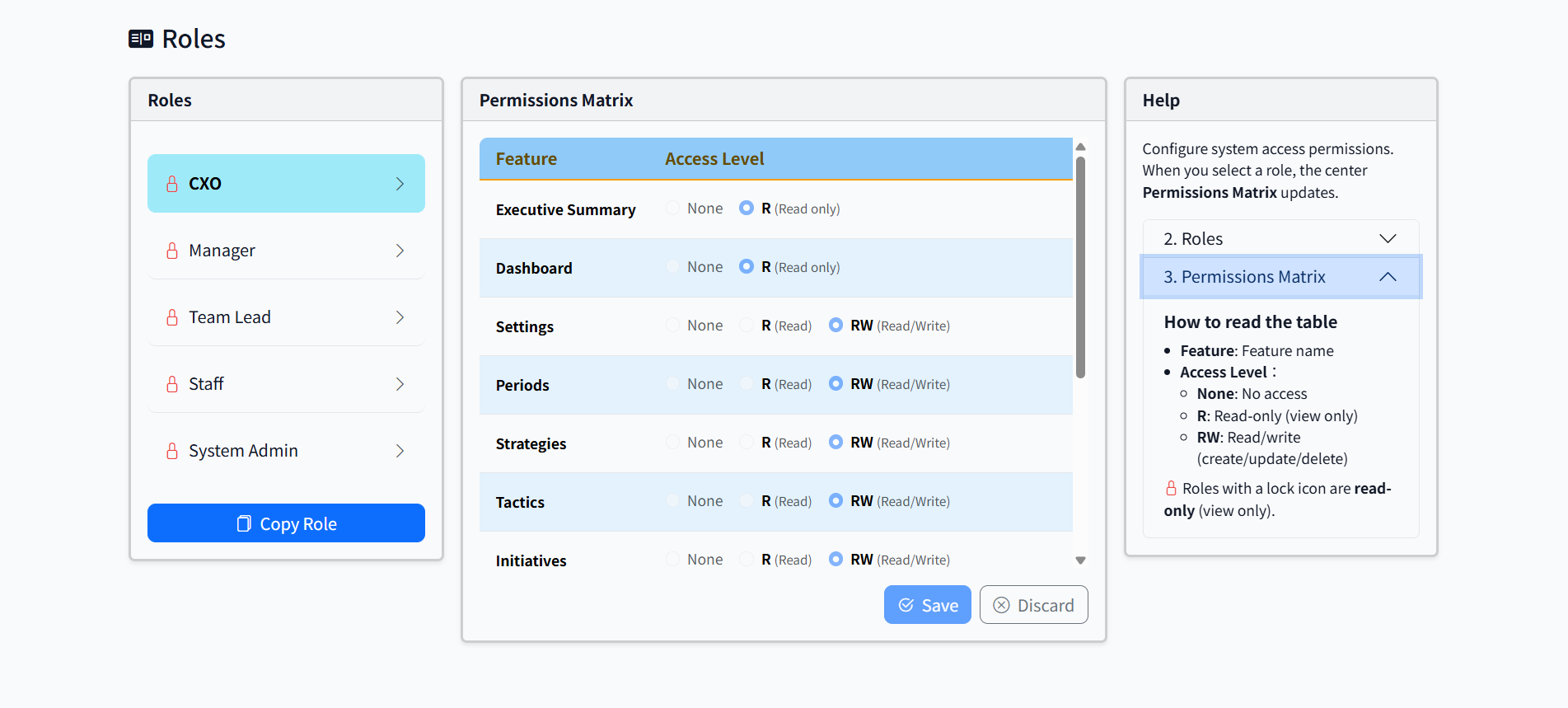
Role Permissions - Granular access control with inline help

Permissions matrix with inline help panel

Default roles included: Start with pre-configured CXO, Manager, Team Lead, Staff, and System Admin roles. Customize permissions or copy roles to create new ones.

3

Position Setup

Define positions within your organization. CSV bulk import supported.
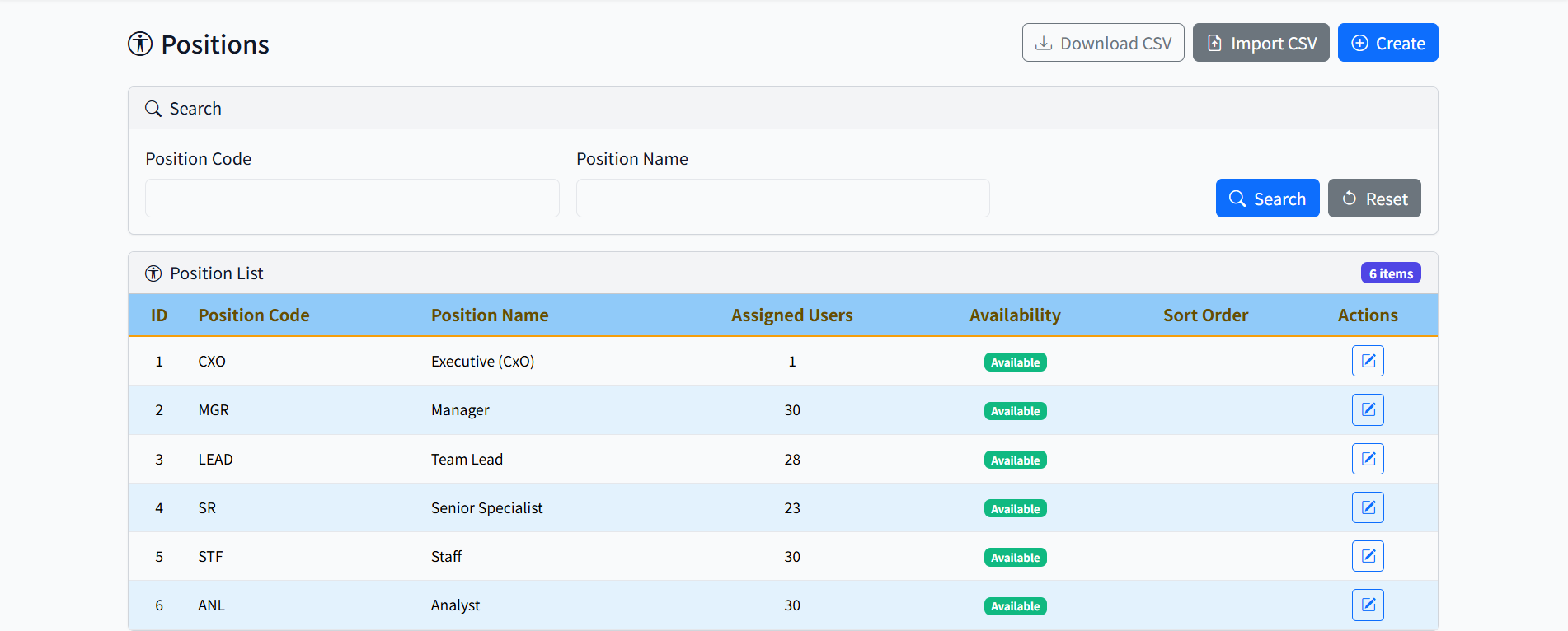
Positions List - CSV import available

Position list with sort order and availability
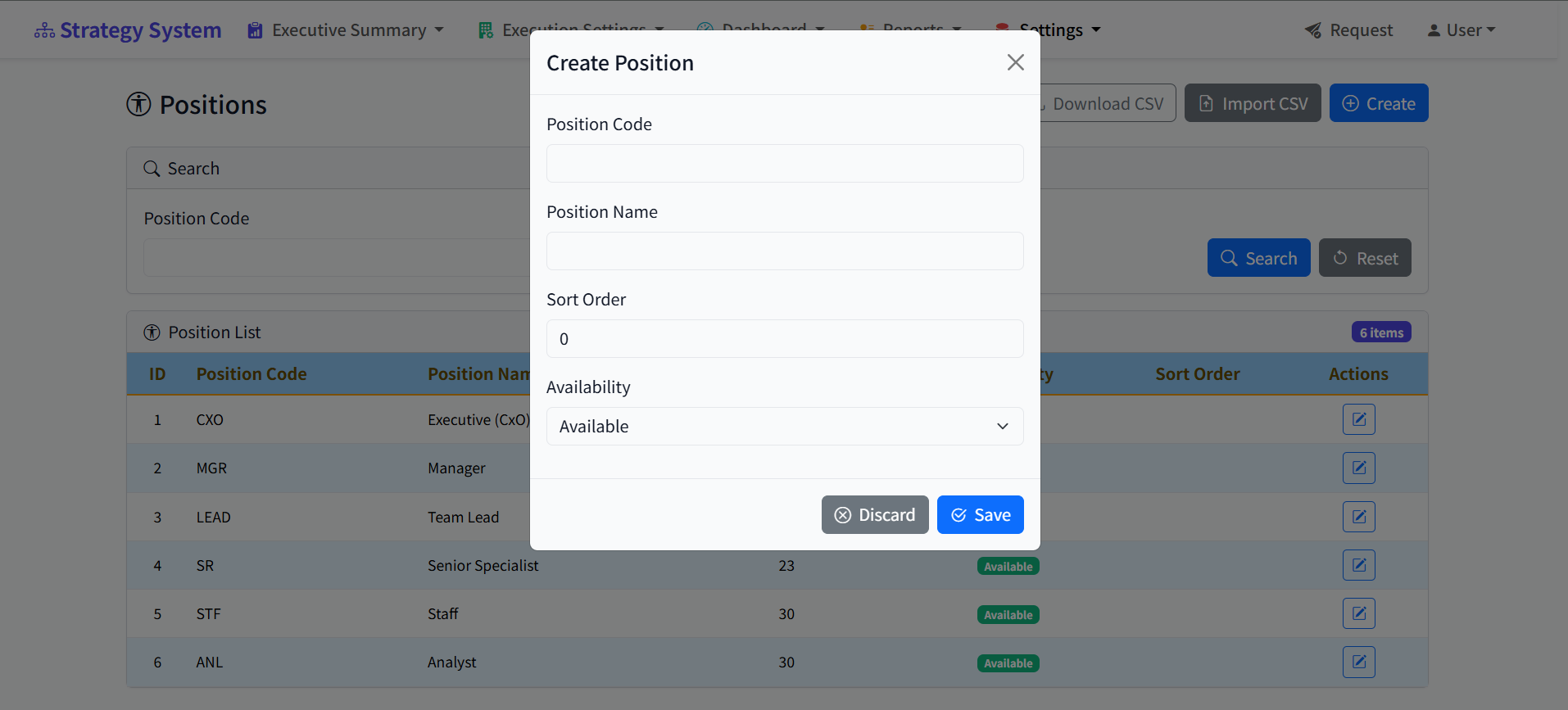
Position Create - Simple form

Create positions with code, name, and sort order

Sort order: Set display order for positions in dropdowns and reports (e.g., CXO first, Staff last).

4

User Registration

Add users to your organization. Each field includes inline help to guide you through the process.
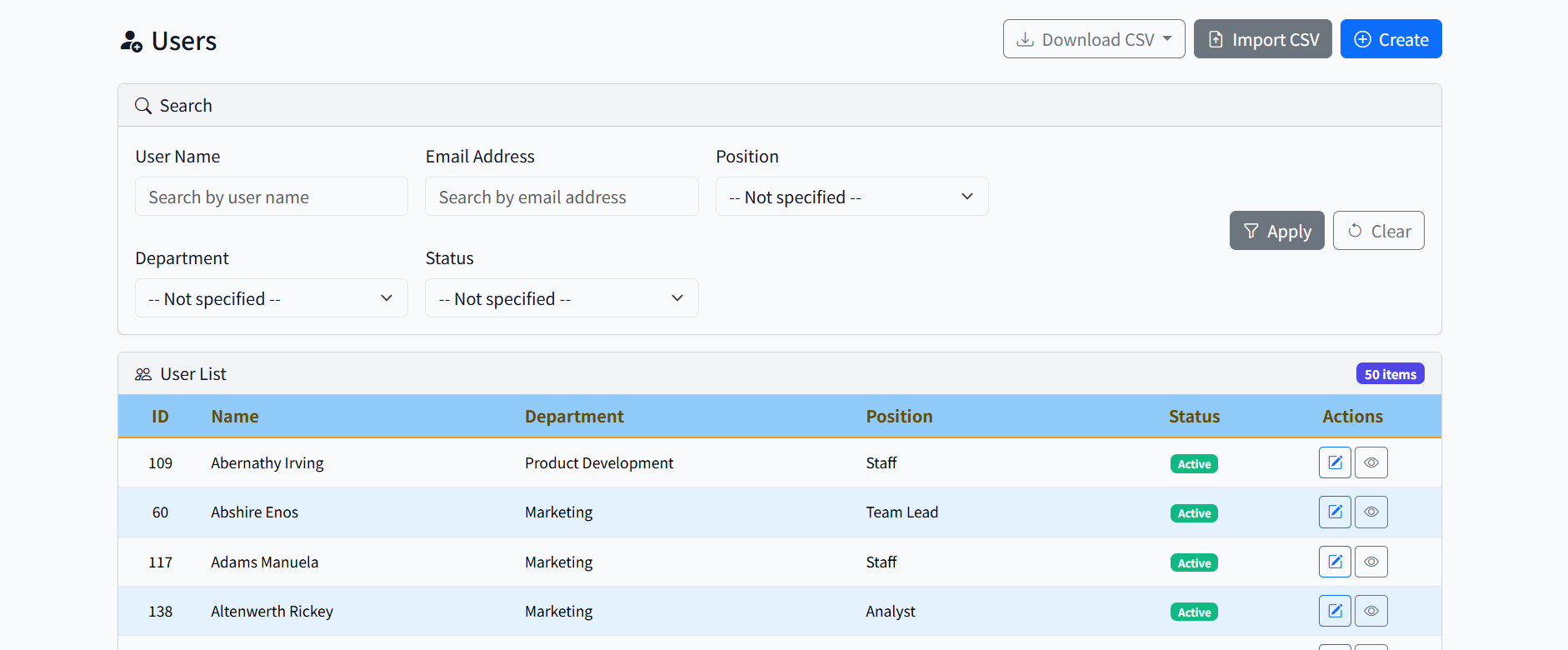
User List - Search and filter users

User list with search and CSV import

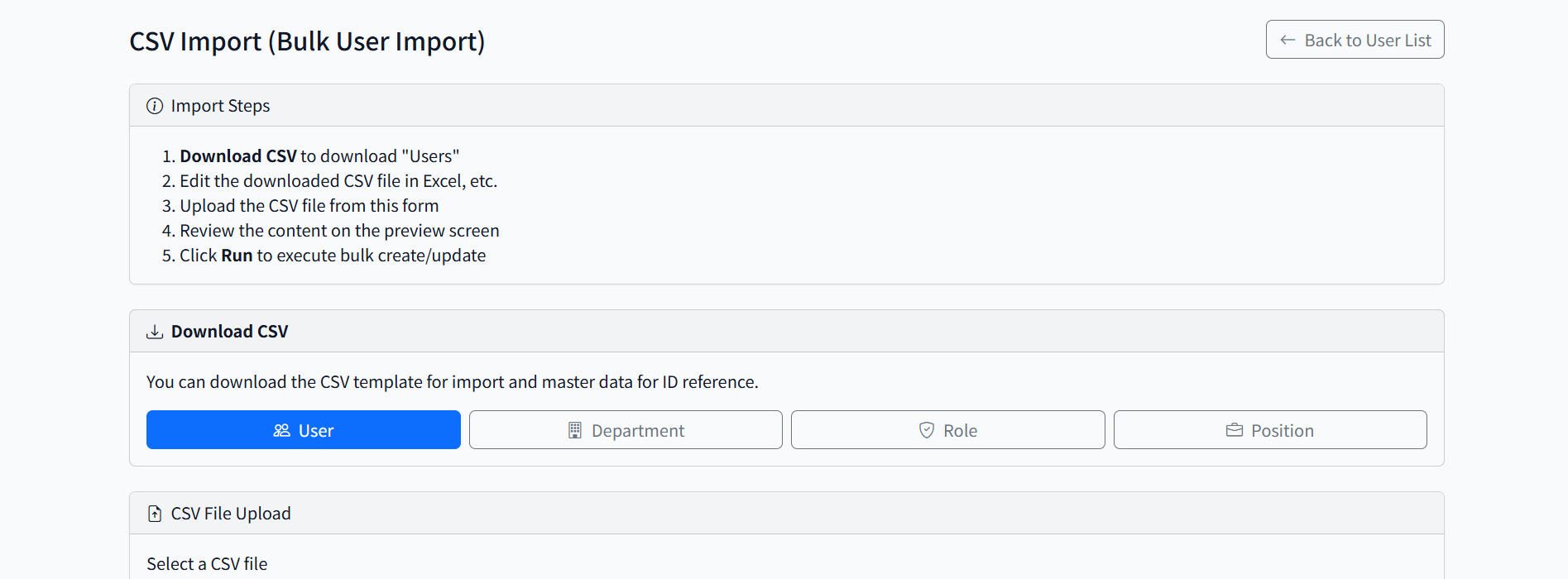
User CSV Import - Bulk user import

CSV bulk import with template download
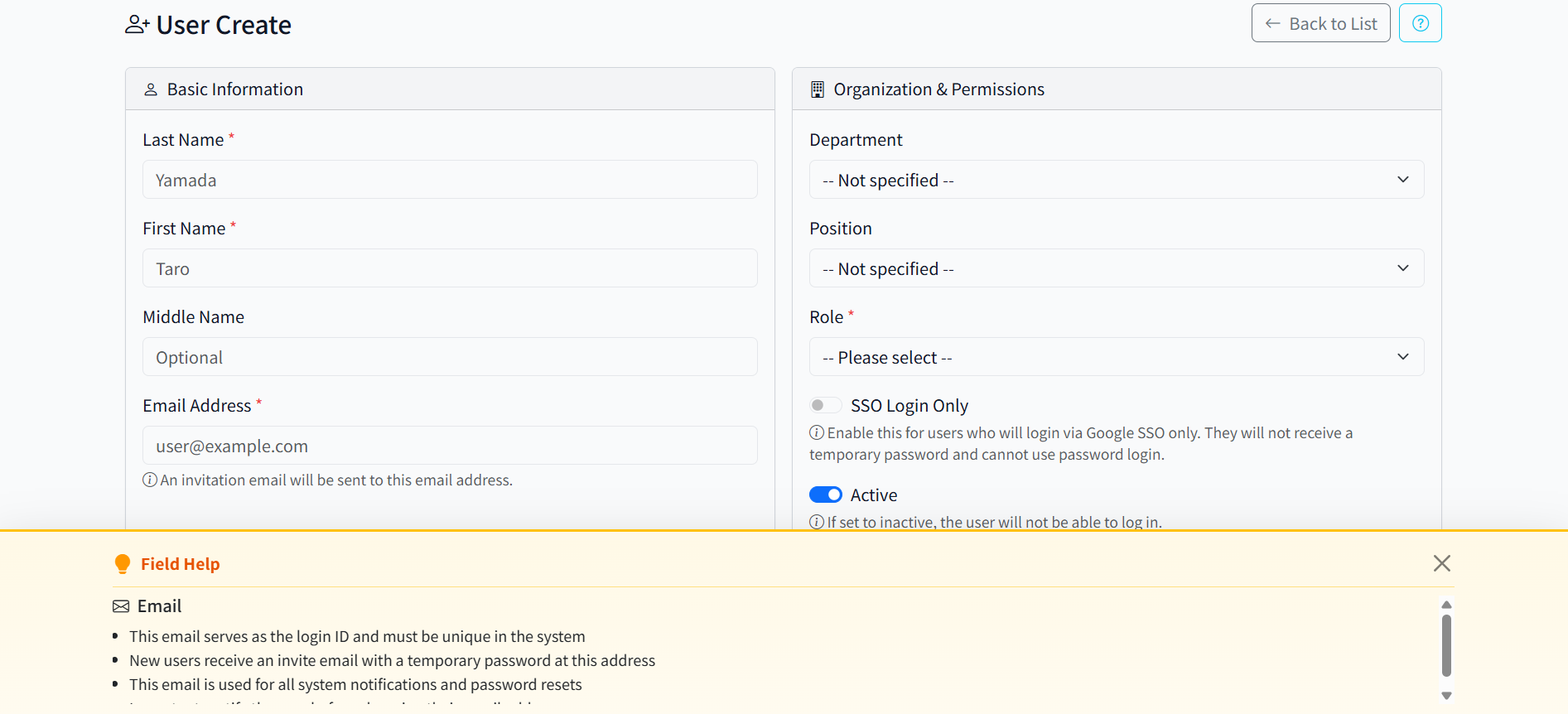
User Create - Inline help for email field

Inline help: Email serves as login ID
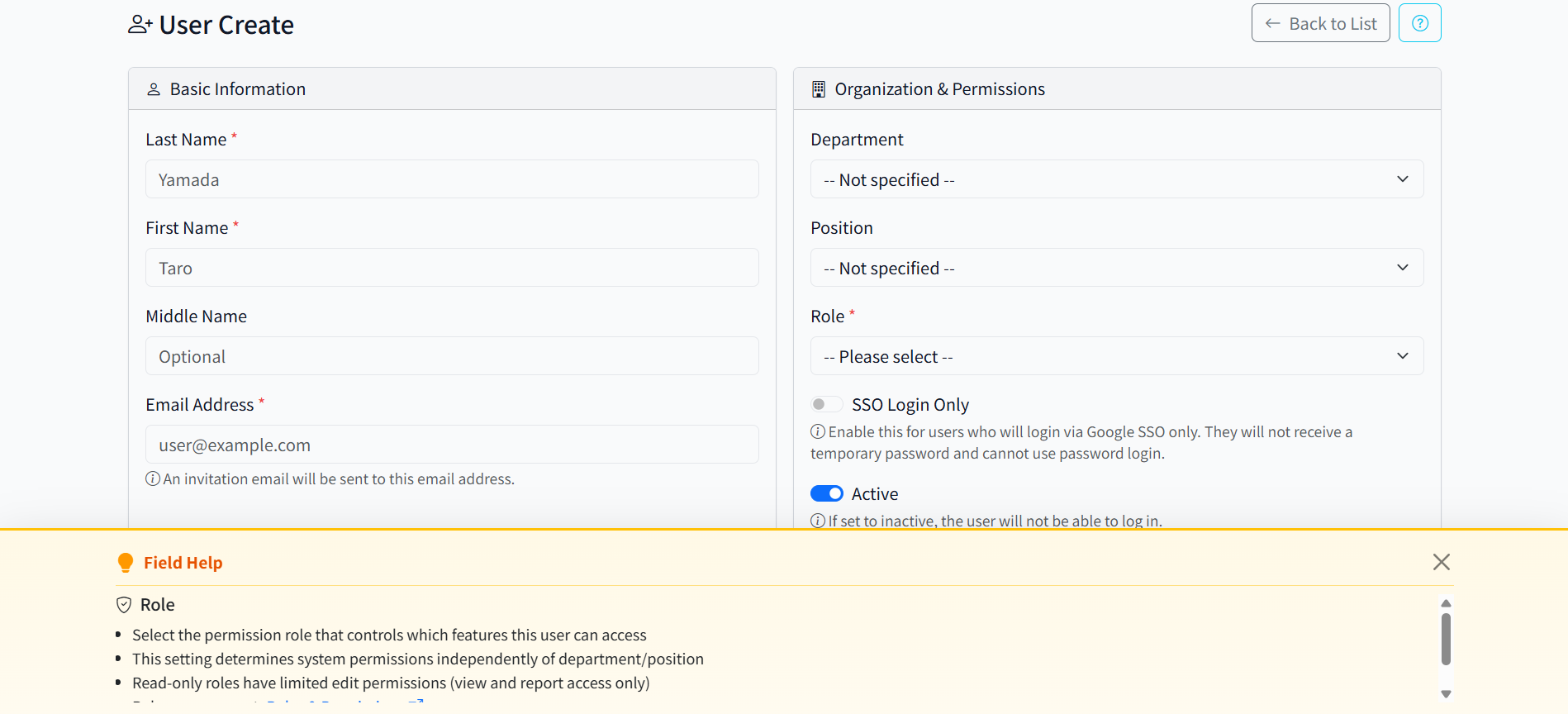
User Create - Inline help for role field

Inline help: Role permissions explained

Automatic invites: New users receive invitation emails with temporary passwords. Supports Google SSO for passwordless login.

5

Company Configuration

Set company information, billing details, and optional security settings (IP whitelist).
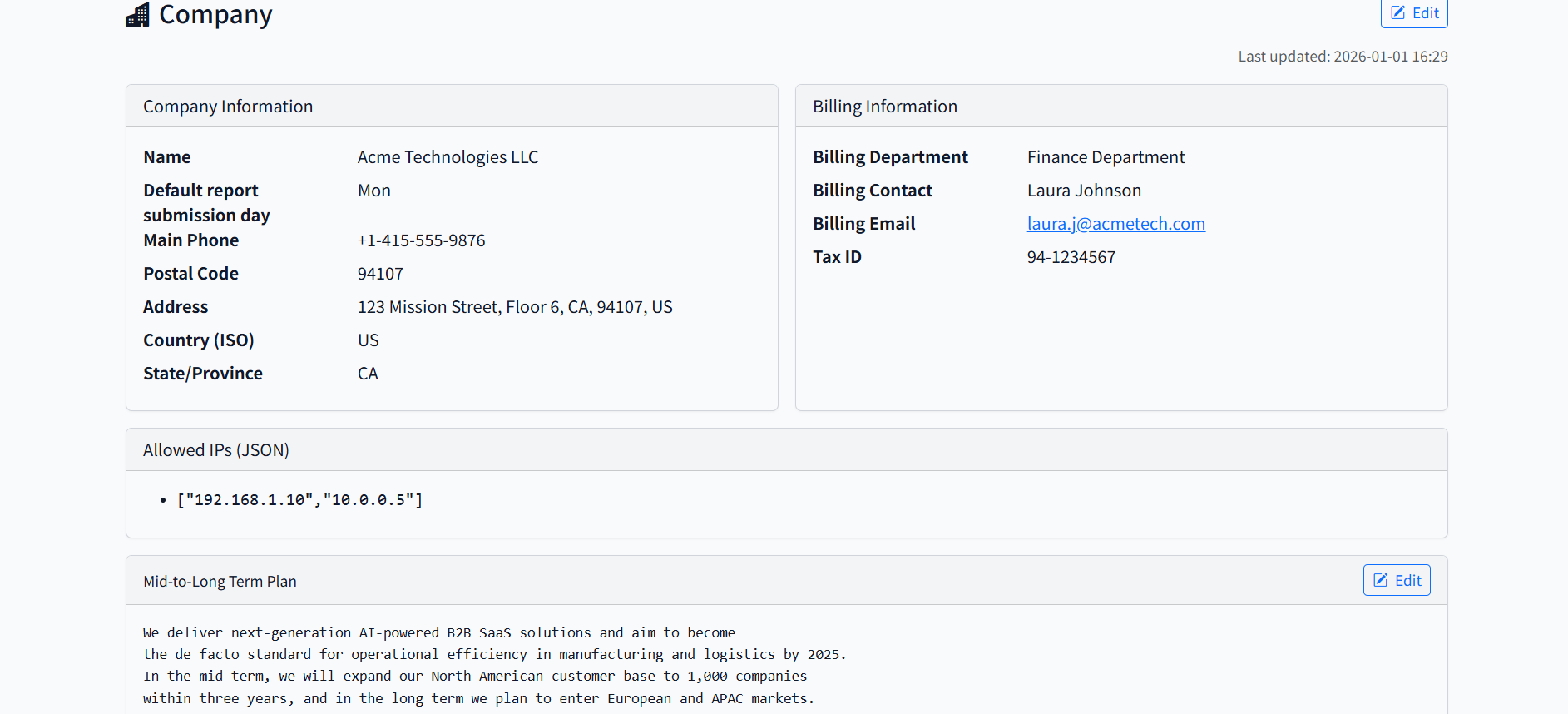
Company Information - Basic settings

Company info and billing details

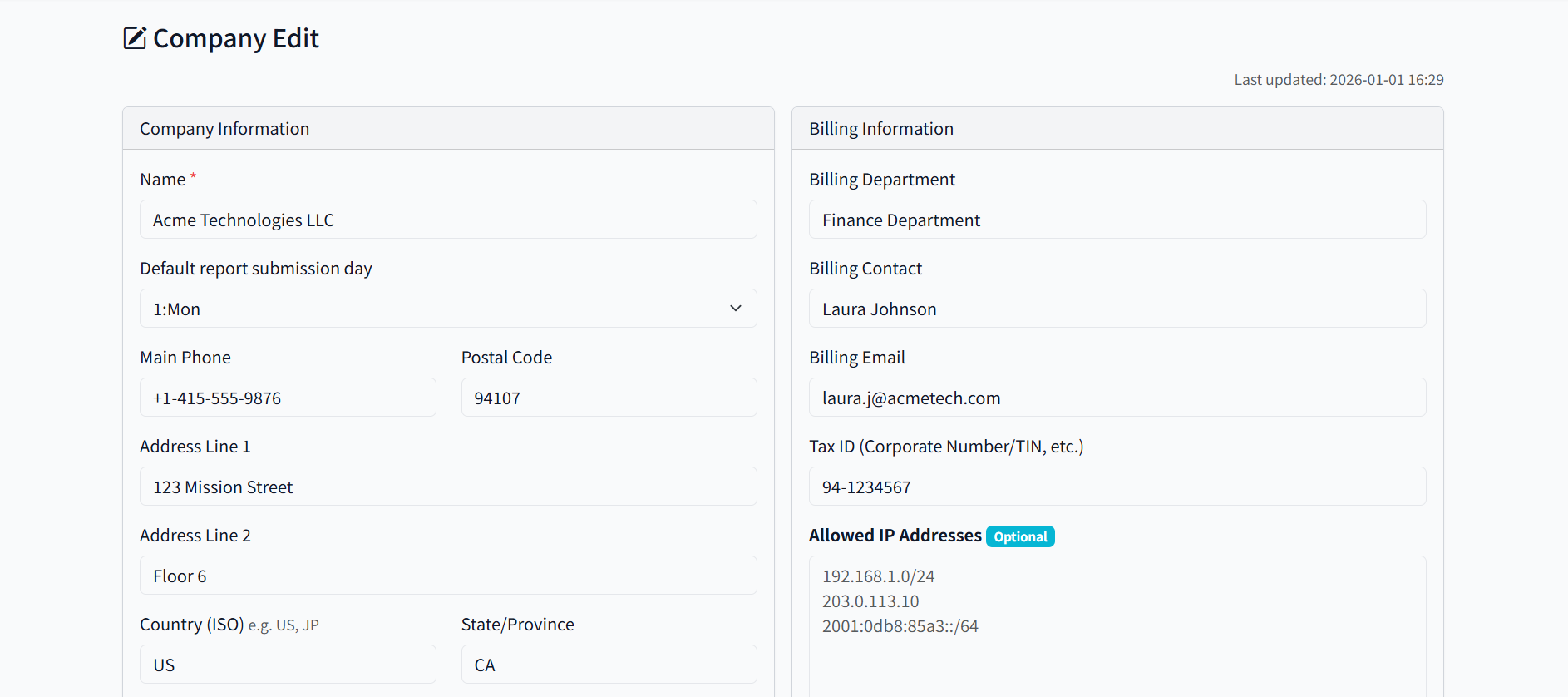
Company Edit - Form with all fields

Edit company details with optional IP whitelist

Optional security: IP whitelist is optional—restrict access to specific IP ranges for enhanced security.

That's it. Master setup complete.

You're now ready to define your strategy layers (Theme → Strategy → Tactic → Initiative) and start tracking execution.

Start your free trial
Every field includes inline help

No documentation needed. No demo required. Just click the help icon and see exactly what each field does.

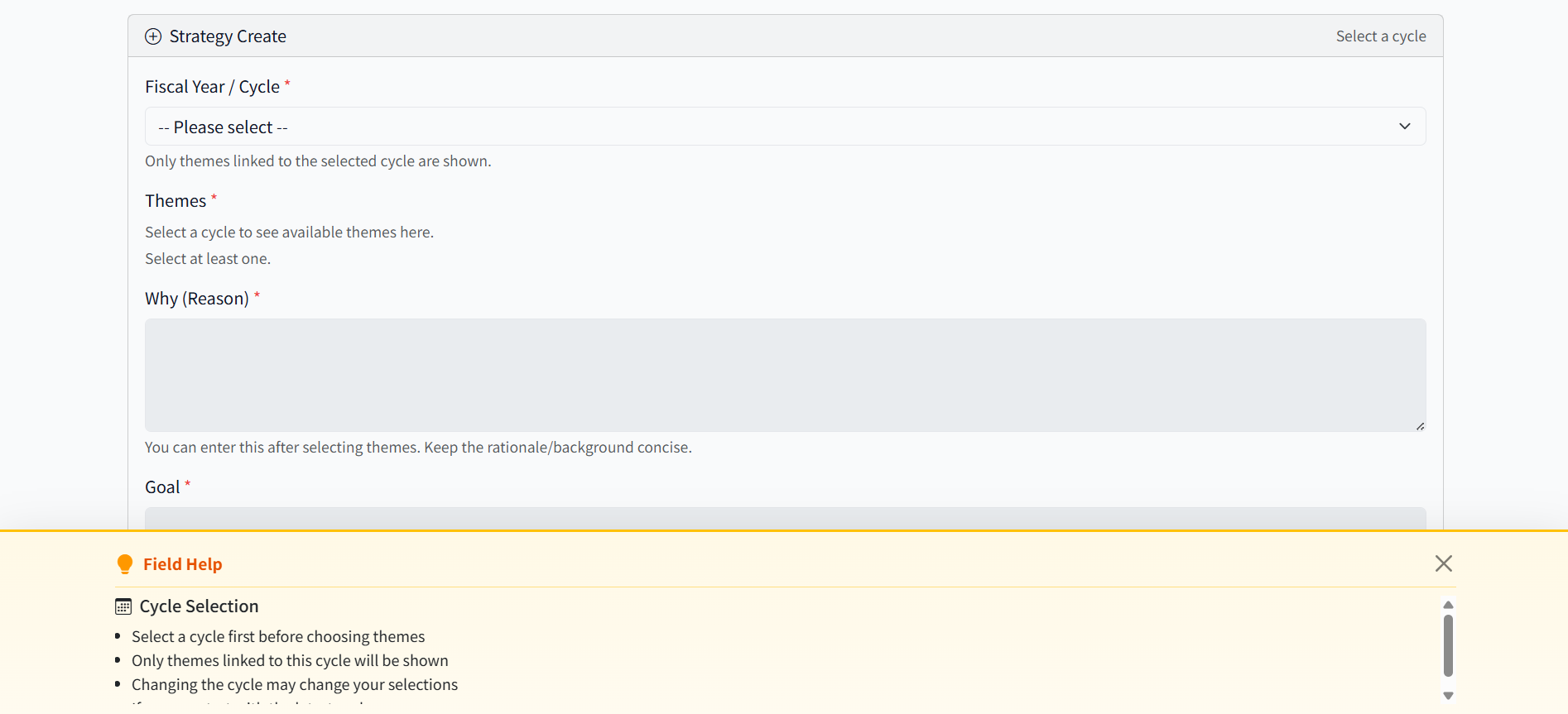
Strategy Create - Inline help for cycle selection

Strategy creation with cycle selection help

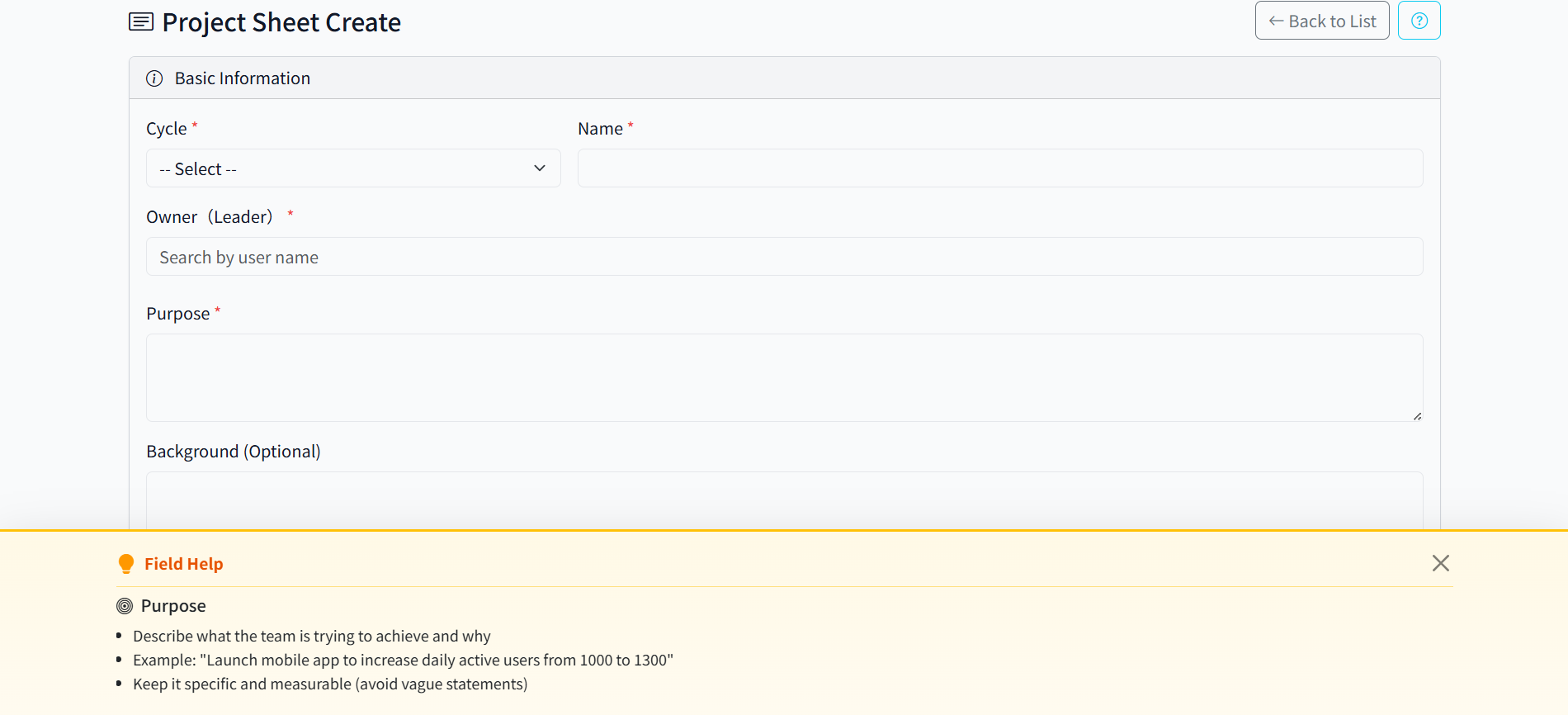
Project Create - Inline help for purpose field

Project creation with purpose field help

This is why you don't need a demo.

The system guides you through every step. If you get stuck, the help panel explains exactly what to do.

Guided by the order you think

Input screens guide you through the natural thinking process. No page transitions. No searching for help. Everything you need is right there.

Strategy Setup Example: Creating a Theme

When creating a theme, the help panel guides you through the thinking process step by step—without leaving the page.

Theme Info - Enter name and Why for alignment

Step 1: Theme Info—Name and Why to align team intent

Why (Reason) - Background and intent with clear structure

Step 2: Why (Reason)—Facts → Interpretation → Conclusion

Related Strategies - Connect to published strategies

Step 3: Related Strategies—Link to supporting strategies

Projected Budget - Estimate with flexibility

Step 4: Projected Budget—Estimates can change later

No page transitions. No searching for help.

The help panel updates automatically as you move between fields. Just click the help icon or focus on a field—the relevant help appears instantly.

This is why setup feels effortless. The system guides your thinking process, not just data entry.

Experience it yourself—help dynamically changes based on where you're working.

See execution results immediately

Track strategy execution with burndown charts and KPI progress. Identify what's working and pivot when needed.

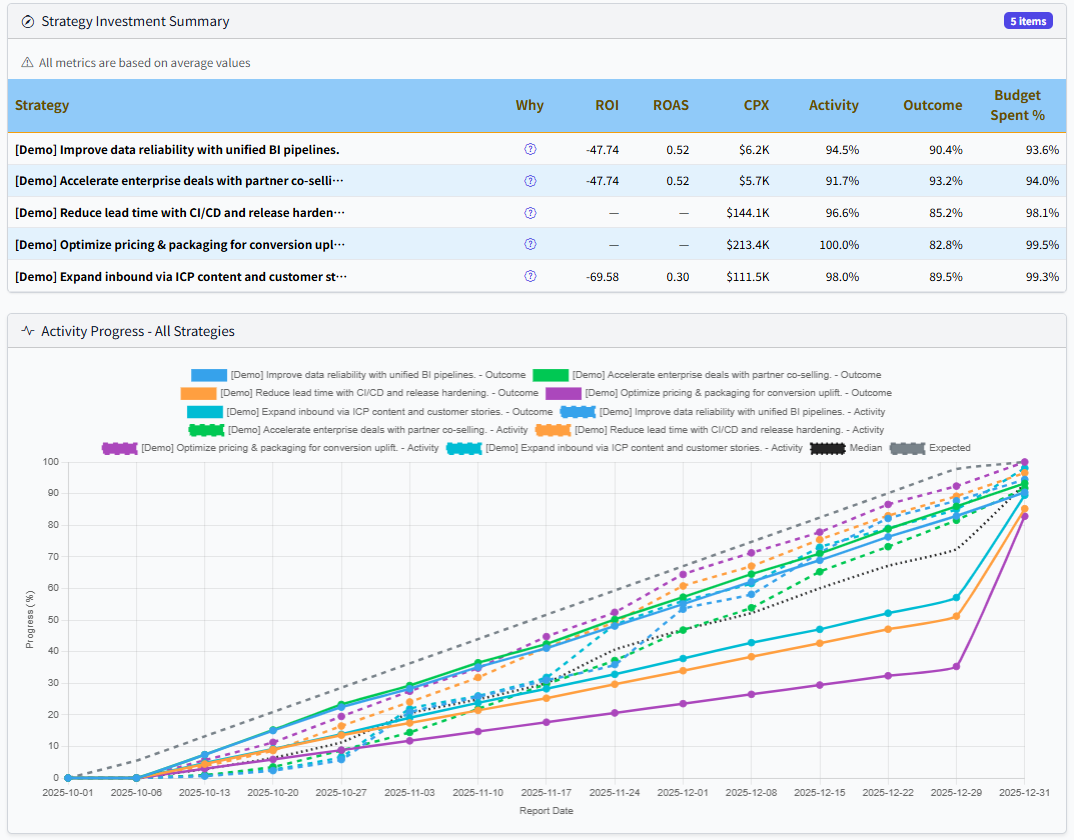
Strategy Monitoring Summary - Burndown chart and progress tracking

Strategy Monitoring Summary
Burndown charts show activity vs outcome trends across all tactics

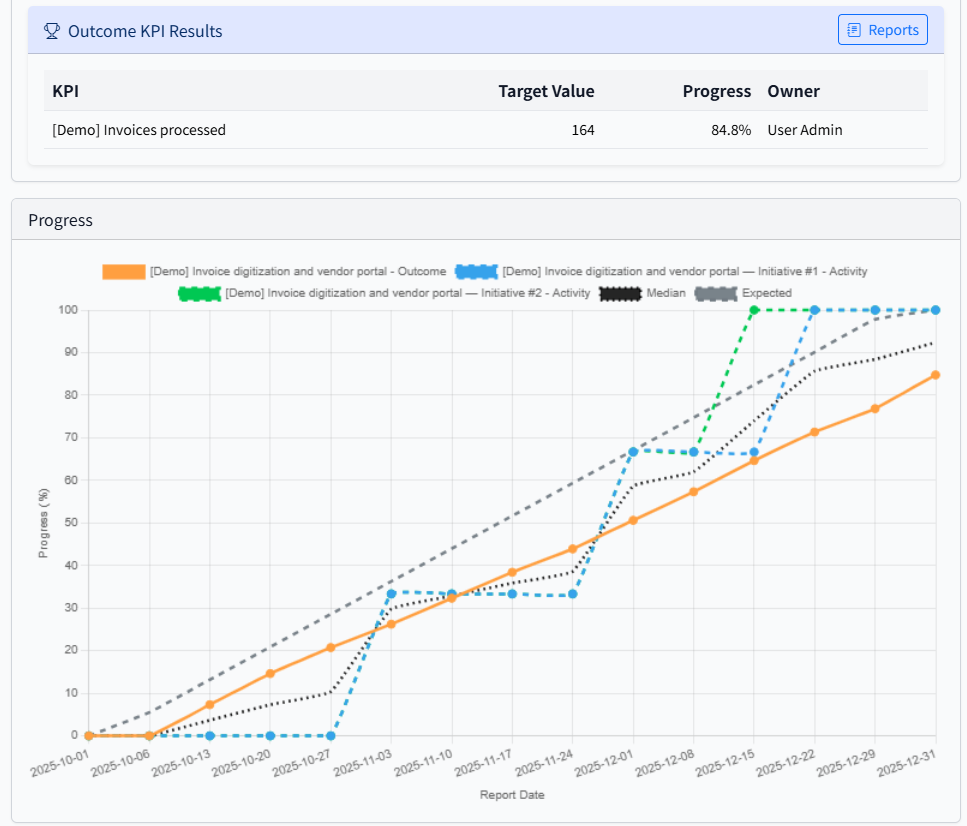
Outcome KPI Results - Progress tracking with multiple initiatives

Outcome KPI Results
Track target vs actual progress across multiple initiatives

Teams log progress once a week. Dashboards update in real-time.

No more hunting for status updates or guessing which tactics are working. The system shows you exactly where execution stands.

Your path to strategic clarity

Master setup prepares your organization. Strategy definition connects the layers. Weekly reporting reveals execution reality.

🎯

Define Your Strategy

Create your quarterly themes, strategies, tactics, and initiatives. The 4-layer structure connects everything automatically.

📊

Track Progress Weekly

Teams log progress once a week. Dashboards update in real-time with activity vs outcome tracking.

Make Informed Decisions

See which tactics are working and which aren't. This is what "Next For Decision" means—pivot immediately when activity doesn't drive outcomes.

Realistic timeline: 1 week to full operation

If you already have your strategy defined, complete setup in about 1 week.

Start seeing reports the following week.

Note: All screenshots shown are from the development version with sample data for demonstration purposes. UI is subject to change.

Ready to see how simple setup can be?

No credit card required. No demo needed. Just sign up and start.

Full operation in about 1 week. Cancel anytime.